Multi-Queue Hub
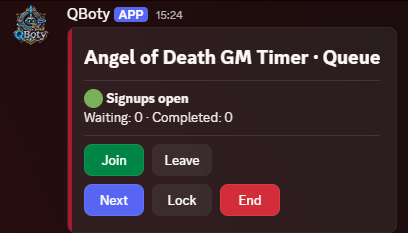
Create multiple independent queues in the same channel. Hosts control progression, members, locks and settings through Discord buttons.
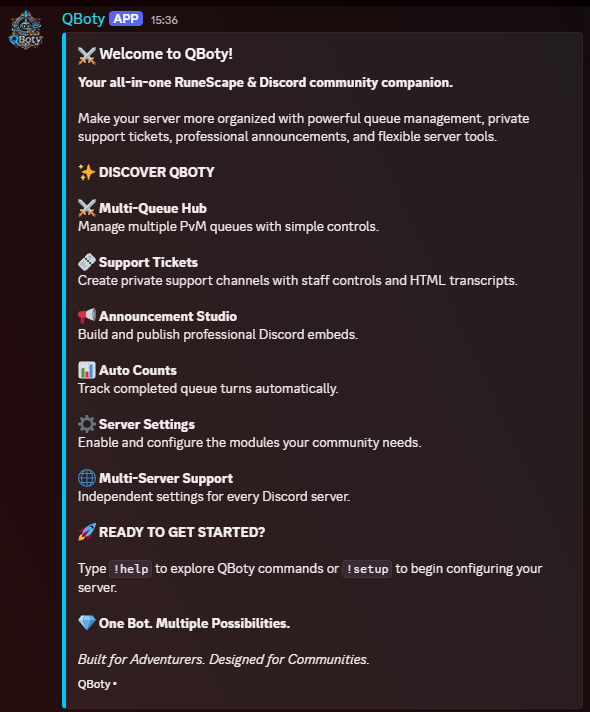
Built for PvMRun multiple queues, help members through private tickets, and publish beautiful announcements — all from one organized Discord experience.
Useful tools for the day-to-day work of keeping a community organized, with modular controls and per-server settings.
Create multiple independent queues in the same channel. Hosts control progression, members, locks and settings through Discord buttons.
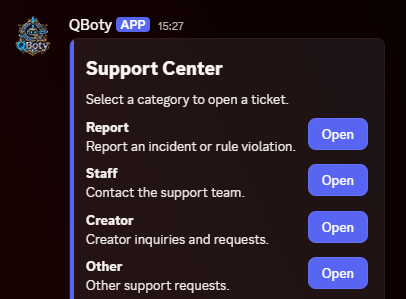
Built for PvMProvide private support with ticket claiming, member access controls, close confirmation and HTML transcripts.
Private by designWrite, preview and publish custom announcement embeds through an interactive interface.
Publish with confidenceOptionally record completed queue turns and browse participation history. Not a verified boss-kill tracker.
Optional per queueTurn queue management and ticket support on or off to fit the needs of your Discord community.
Your server, your rulesEach community gets its own settings, tickets and queue records — stored separately.
One bot, many serversQBoty uses interactive Discord menus, buttons and forms instead of making everyone memorize a long command list.
Invite QBotyAdd the bot to your Discord community.
Set up your modulesConfigure queues and tickets for your server.
Start organizingLet members interact with clean, guided panels.
⚙ Server Modules
Configure features for your community
Start with a command, then use QBoty's interactive buttons and menus.
!help!queue!ticket!setup!embedQBoty is designed around RuneScape community workflows, especially PvM queues. Its ticket and announcement features can also be useful to other Discord communities.
No. The current v1.4.0 bot uses interactive Discord messages, forms and buttons to configure its features.
No. Auto Counts tracks completed queue turns. It does not verify RuneScape boss kills.
Yes. QBoty stores server-specific module settings, queues and ticket information independently.
Use !help inside Discord or visit the QBoty Community server once its link is configured.
From queue coordination to ticket support — put the tools your server needs in one place.
Site owner: set the official Discord invite links in config.js to activate these buttons.